Draw Panel
The Draw panel is where you create and edit the geometry — nodes and edges that form roof outlines.
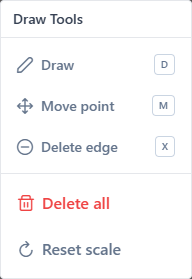
Sub-modes
Draw edge
Shortcut: D
Click to place a node. Each following click adds a new node and an edge connecting it to the previous node, forming a chain.
- Close a chain by clicking the starting node (highlighted in green when the cursor is near).
- End a chain without closing by clicking the last placed node, or right-clicking anywhere on the canvas.
See: Draw edges.
Move point
Shortcut: M
Click and drag any existing node to reposition it. Connected edges follow.
- Dragging a node onto an existing edge splits that edge at the drop point; the dragged node becomes the split vertex.
- Dragging a node onto another node on the same layer merges the two into one (edges from both are combined, duplicates removed).
- Dragging onto a node of a different layer does not merge them — the layers remain independent. Use snap while drawing an edge to create a cross-layer shared vertex instead.
Delete edge
Shortcut: X
Click any edge to remove it. Orphan nodes (nodes with no remaining edges) are cleaned up automatically.
Actions
Delete all edges
Removes every edge on the current layer. A confirmation dialog appears.
Important
This is per-layer. Other layers are unaffected.
Reset scale
Clears the project scale and reopens the scale setup dialog. Use when:
- the original reference line was inaccurate
- the source plan changed
- you entered the wrong real length initially
A confirmation dialog appears before the scale is cleared.
See: Set Scale.
Snap behavior
While drawing or moving:
- Node snap — cursor locks to existing nodes within a radius
- Edge snap — cursor lands on an existing edge, preparing a split on click
- Guide snap — vertical / horizontal alignment with other visible nodes
Snap cues:
- A green highlight on a target edge means snap will insert a node there.
- A crosshair with a dot means snap is locked onto a specific node.
- A vertical or horizontal dashed line means snap is aligned to another node's axis.
Typical workflow
- Open Draw panel.
- Select Draw edge (or press
D). - Click to place the first node.
- Continue clicking to build the roof outline.
- Close the polygon by clicking back on the first node.
- Switch to Move point to fine-tune positions.
Related
- Draw edges — hands-on workflow
- Edges and facets — concepts
- Keyboard shortcuts