Export PDF
Once a report is generated, you can download it as PDF or email it directly to a recipient.
Download
From the toolbar:
- Click Download PDF.
- The browser saves the file to your default downloads location.
- File name usually includes the project name and date — rename after download if needed.
Recommendation
After generating a fresh report, download it locally as a backup in addition to keeping the server-side copy.
Email
From the toolbar:
- Click Email PDF.
- In the modal, enter:
- the recipient email address
- an optional message
- Click Send. A toast notification confirms delivery.
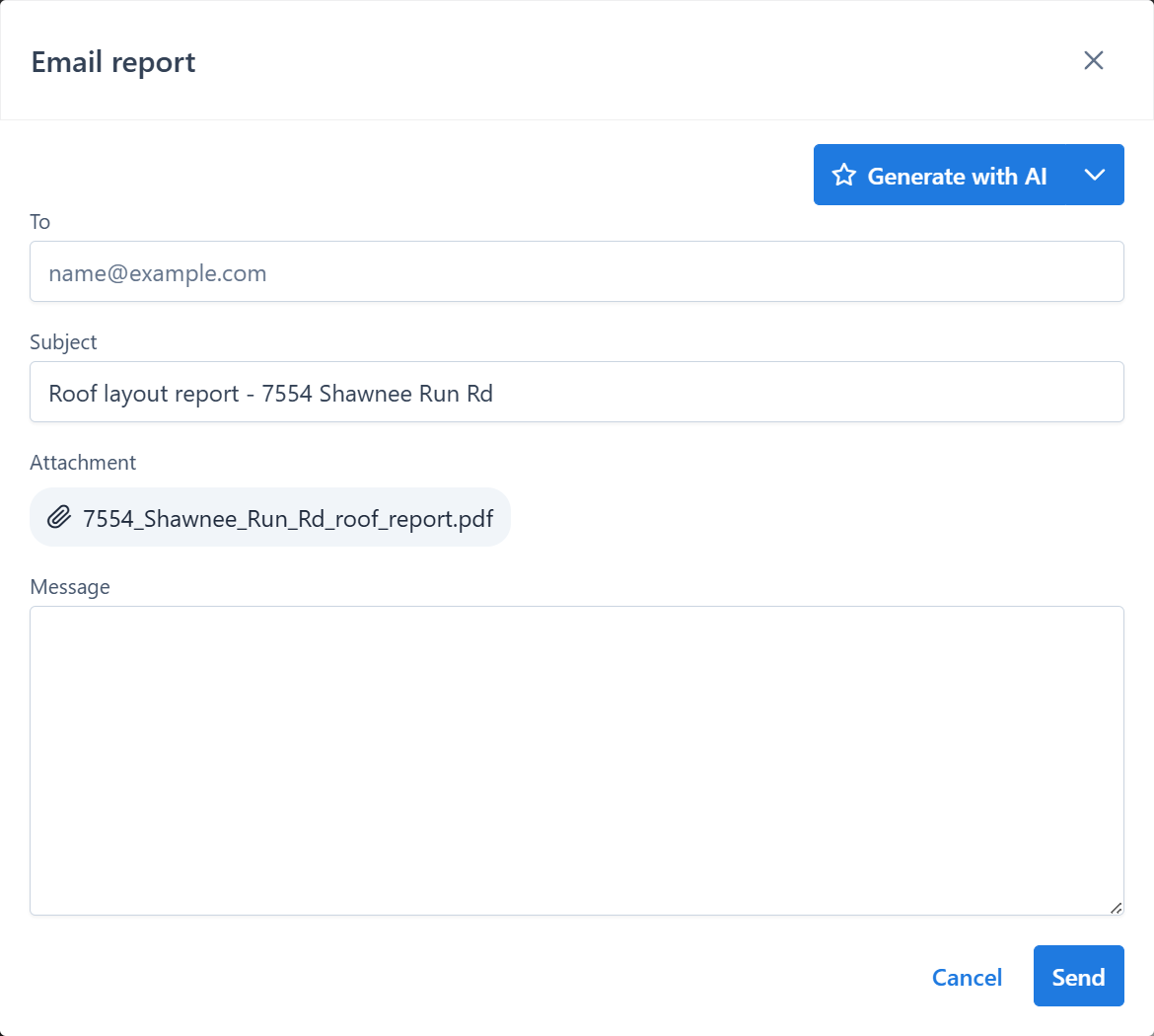
The email is sent from your account, with the PDF attached.
File format and size
The report is a standard PDF viewable in any PDF reader. Typical sizes range from 200 KB to a few MB, depending on:
- the size of the background image
- the number of facets and edges
- the report template version
Versioning
Only the most recently generated report is kept. Regenerating replaces the previous PDF.
To keep historical versions, download each generation locally before regenerating.
Tips
- Always preview the report with Show report before emailing.
- Use clear filenames when downloading — include the project name and date.
- For customer-facing delivery, double-check language and units in Settings.