Classify Edges
This workflow explains how to assign a type to each edge using the Edges panel. See Edge types for the list of available types and when to use each.
When to classify
Classify edges after you finish tracing the roof outline. Correct edge types are required for:
- automatic slope direction detection
- accurate edge lengths in the report
- correct slope-factor calculations
A project with unspecified edges will generate an incomplete report.
Enter Edges mode
Open the Edges panel by clicking the edges icon at the top right. Or press any edge-type hotkey (E, V, H, G, R, A, P, W, S, T, O, U) — that selects the type and opens the panel in one step.
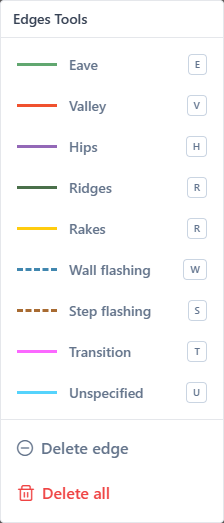
Classify a single edge
- Pick an edge type from the panel — it becomes the active type.
- Click an edge on the canvas. The edge changes color to match the active type.
- Continue clicking other edges to apply the same type.
Switch the active type in the panel at any time to start labeling other edges.
Keyboard shortcuts
Each edge type has a hotkey. Press the key to activate the type, then click edges:
| Type | Shortcut |
|---|---|
| Eaves | E |
| Valleys | V |
| Hips | H |
| Ridges | G |
| Rakes | R |
| High Eave | A |
| Parapet | P |
| Wall flashing | W |
| Step flashing | S |
| Transition | T |
| Other | O |
| Unspecified | U |
Pressing any of these keys also opens the Edges panel automatically.
See Keyboard shortcuts for the full list.
Classify multiple edges quickly
- Pick a type once, click many edges — this is faster than switching types per click
- Work one type at a time — first label all eaves, then all ridges, then hips, and so on
- Use hotkeys rather than clicking the panel to switch types
Reset all edges on a layer
The Reset all edges action in the Edges panel clears every edge on the current layer back to unspecified. A confirmation dialog appears.
Use this if you want to reclassify a layer from scratch.
Slope direction after classification
Once the edges of a facet are classified and the facet has pitch, the app draws a slope direction arrow inside the facet. The arrow points from the ridge toward the eave — the direction of water flow.
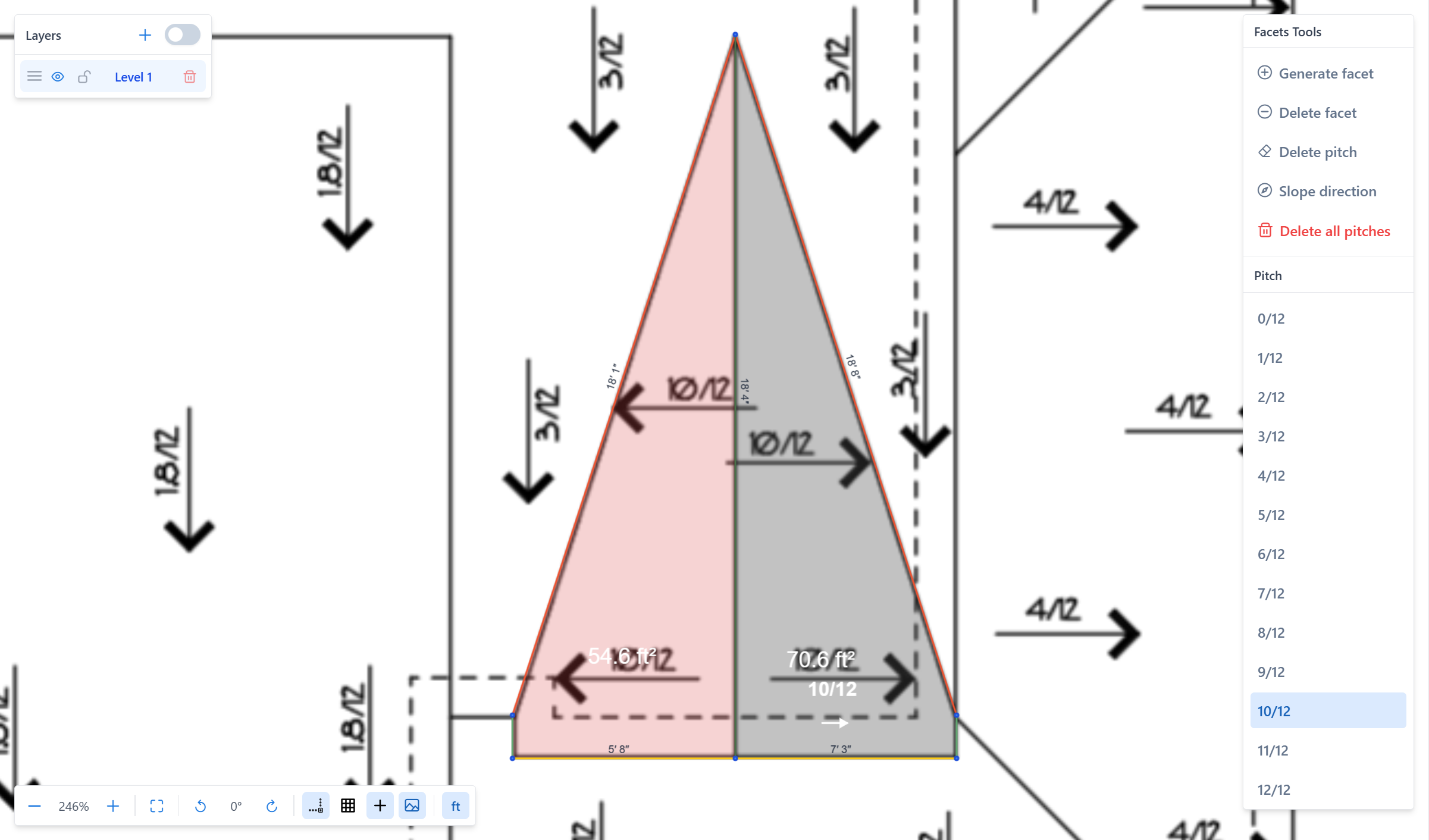
If the arrow direction is wrong, you can override it manually — see Set pitch.
Tips
- Start with eaves — they are the easiest to spot (gutter lines at the bottom).
- Then ridges — the highest horizontal lines.
- Next hips and valleys — the sloped lines between planes.
- Finally rakes, high eaves, parapets, flashings, transitions, and other custom conditions — less frequent but important.
- Leave no
unspecifiededges in a finished project.
Common issues
The edge didn't change color after I clicked
- The layer is locked. Unlock it in the Layers panel.
- You clicked near the edge but not on it. Zoom in and click precisely on the line.
Slope arrow doesn't appear
- The facet doesn't have pitch yet — assign pitch in the Facets panel.
- Some edges around the facet are still
unspecified. Classify them first.
I classified the wrong edges
Switch to Unspecified (U) and click the edges to reset them, then apply the correct type.
What to read next
- Set pitch
- Measurements
- Edge types — reference for each type