Save and Reopen
Projects are stored on your account. You can save a project at any time, close the tab, and reopen later to continue where you left off.
How saving works
There are two paths:
- Manual save — use the
Savebutton in the toolbar. Saves immediately. - Autosave — runs in the background every few seconds after a change. Silent.
Both save the full project state:
- background image and crop
- scale
- all layers, nodes, edges, facets
- edge classifications and facet pitches
- project info (name, address, preparer)
- status
Save indicators
During save:
- the
Savebutton may show a spinner - a toast notification appears on success or failure
If a save fails, the error is shown. Check your internet connection and try again.
Reopen a project
Click Open project in the toolbar. A list of your saved projects appears with:
- project name (falls back to a default if not set)
- address from project info
- last modified date
- status (new / in progress / completed)
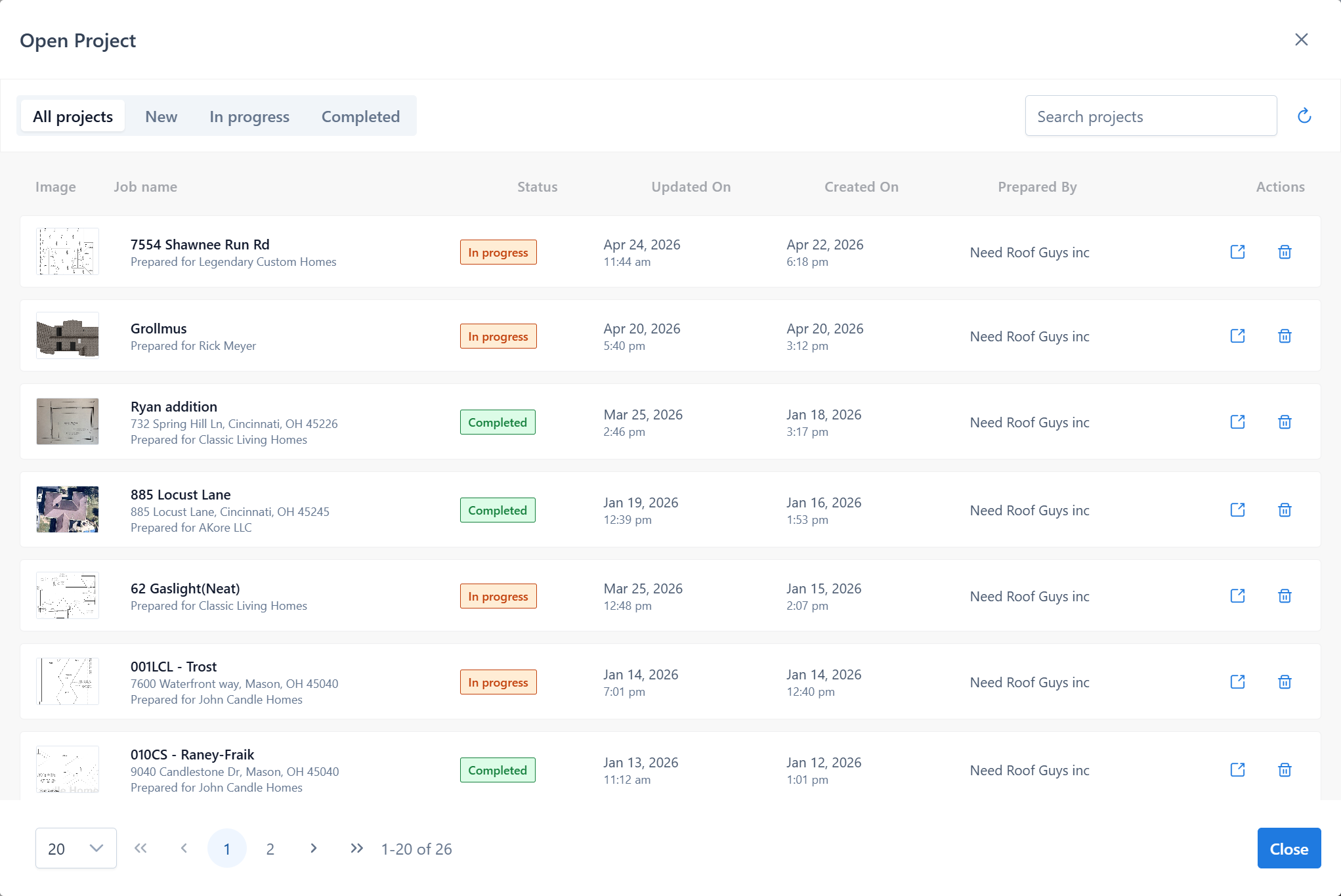
Click a row to open the project. If the current workspace has unsaved changes, confirm the reset first.
Reset to a new project
Click New project in the toolbar. If a project is already open, a confirmation dialog appears:
- Accept → the current project is saved and a blank workspace opens.
- Cancel → nothing changes.
Delete a project
In the Open Project list, each row has a delete icon (trash). A confirmation dialog appears before deletion.
Important
Deletion is permanent. Make sure you have generated any needed reports first.
Tips
- Save a checkpoint manually before major changes (restructuring layers, large geometry edits).
- Autosave doesn't replace manual discipline — if you want a stable snapshot, save explicitly.
- If you lose internet during work, changes remain in the browser. Reconnect, then save.
- Use meaningful project names and set the address — it makes the list searchable.
Common issues
Project didn't save
- Check the connection. A toast notification usually shows the exact error.
- Try again — autosave will retry automatically.
Open Project list is empty
- You may be signed into the wrong account.
- The server might be unreachable. Check your connection.
Opened the wrong project and lost my work
If you saved your previous project before opening another, your work is on the server — click Open project again and pick the original. Autosave also preserves unsaved changes in most cases, but manual save before switching is always safer.