Report
The Report is the final output of your project — a PDF with project info, roof geometry, measurements, and totals.
Before generating
Make sure:
- Scale is set — without it, lengths and areas are unreliable
- All facets have pitch — otherwise areas are incomplete
- All edges are classified — otherwise edge totals in the report are incorrect
- Project information is filled — at minimum, name and address
Generate a report
- Click Generate report in the toolbar.
- The Report Wizard opens — a large preview modal with the PDF on the left and action buttons on the right.
- On the first open for a new project, click Generate report in the right panel to start the generation. A spinner shows the current stage (saving project → requesting → generating → loading preview).
- When the PDF is ready, it appears in the preview area on the left. The Download and Email buttons become active on the right.
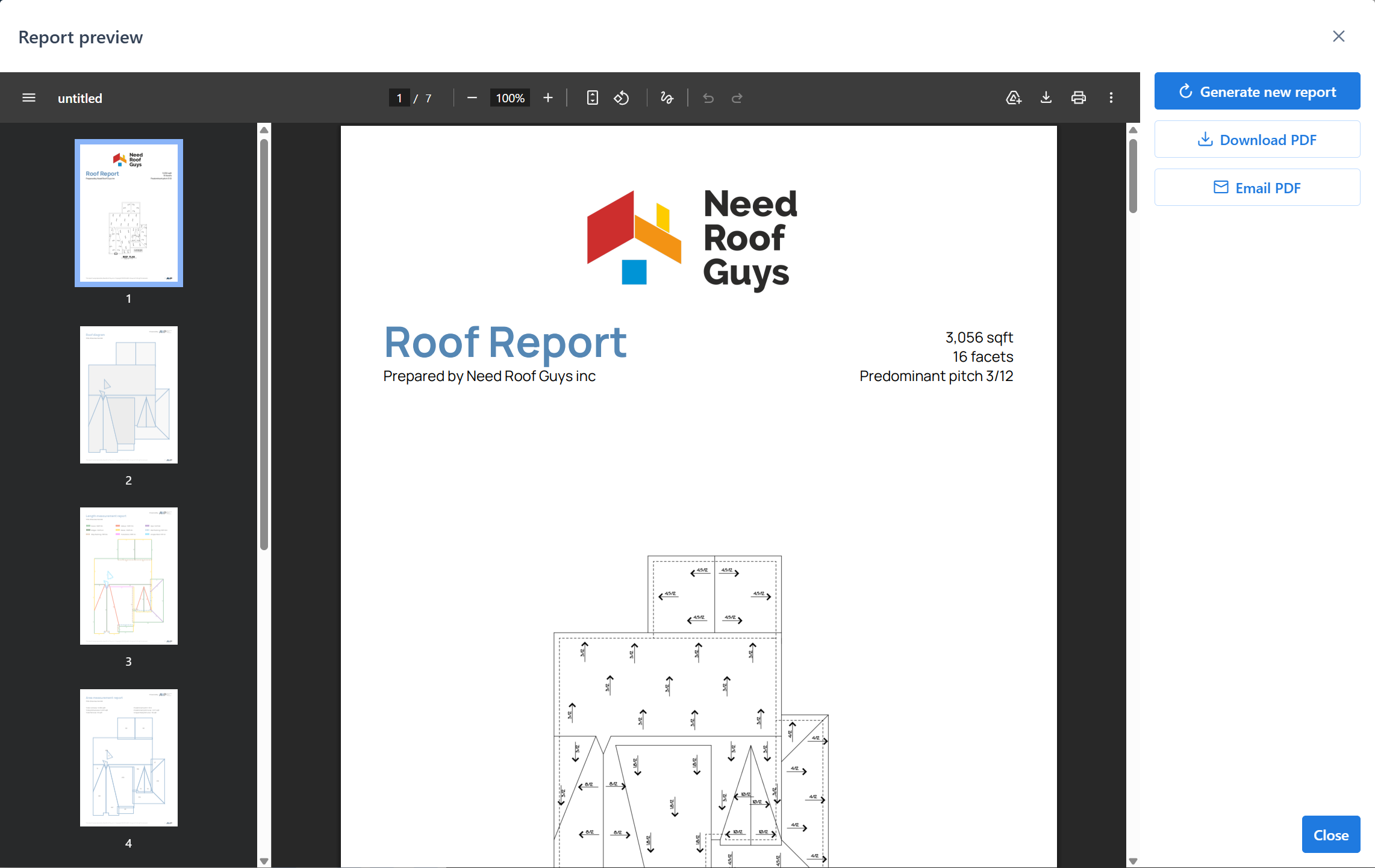
Report Wizard layout
The Report Wizard opens at 95% of the window and contains:
- Preview area (left) — scrollable iframe with the generated PDF. Before first generation, it shows a placeholder message.
- Actions panel (right) — vertical list of buttons:
- Generate new report — re-runs generation after geometry or metadata changes. Visible only when a report already exists.
- Download PDF — saves the current PDF to your computer.
- Email — opens a separate modal to send the PDF by email.
- Close — closes the wizard (bottom of the panel).
View the generated report
Once generated:
- PDF preview is shown directly in the wizard. Scroll through pages without leaving the app.
- Download PDF saves a copy to your computer.
- Email sends the PDF to a specified address (see below).
Email the report
Click Email in the right panel of the Report Wizard. A separate modal opens where you enter:
- recipient email address
- optional message
Click Send. A toast notification confirms delivery.
Report contents
The generated PDF typically includes:
- Header — project name, address, prepared by, date
- Plan image — the cropped source you traced
- Geometry overview — the traced edges and facets with color coding
- Measurements
- facet areas (flat and real)
- edge totals by type (eaves, ridges, hips, valleys, etc.)
- Summary totals — total roof area, total edge lengths
Exact layout depends on the report template version.
Report language
The report is generated in the language set in Settings → Report Language. This can be different from the interface language.
See: Settings.
Regenerate a report
If you change the geometry, pitch, or classification after generating a report:
- open the Report Wizard and click Generate new report in the right panel
- the old report is replaced with the new version
Only the most recent report is available for download or email.
Tips
- Generate the report after finalizing all geometry and classifications. Regenerating is cheap, but doing it cleanly saves time.
- Preview the PDF inside the Wizard before emailing or downloading — catch any missing data.
- Check units and language in Settings before generating to avoid regenerating just to change those.
Common issues
Report generation fails
- Check that scale is set, pitches are assigned, and edges are classified. The wizard usually tells you what's missing.
- Try again — temporary network issues can interrupt generation.
Downloaded PDF is empty or truncated
- Regenerate the report. Partial download may have occurred — reissue from the toolbar.
Can't email the report
- Verify the recipient address.
- Check that email delivery is enabled on your account (contact support if unclear).