Facets Panel
The Facets panel is for assigning pitch (slope) to roof planes and adjusting slope direction.
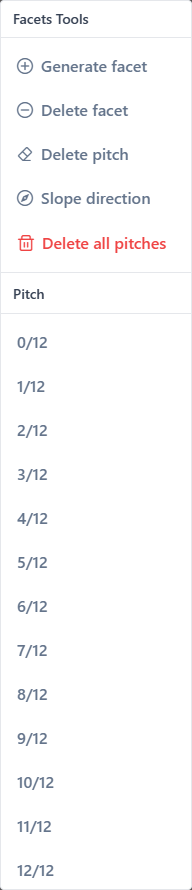
Pitch presets
Quick buttons for common residential pitches, typically ranging from 1/12 to 12/12.
Pick a preset — it becomes the active pitch. Click facets on the canvas to assign.
Custom pitch
For values that don't match any preset:
- Click the custom pitch field.
- Type your rise (decimals are allowed:
5.5,2.25). - Press
Enterto activate. - Click the facets to apply.
Slope direction
Normally calculated automatically from classified edges (ridge to eave). Override manually when needed.
Set Slope Direction mode
Icon: compass.
- Activate Set Slope Direction.
- Click the facet to select it.
- Click the edge that should be the eave (water drains off here).
The slope direction becomes perpendicular to the clicked edge, pointing away from the facet center.
INFO
Manually set directions are fixed. They survive edge reclassification. Re-assigning pitch to the facet restores automatic direction.
Actions
Clear pitch
Click a facet to remove its pitch. The area label falls back to flat area only.
Clear all pitches
Removes pitch from all facets on the current layer. A confirmation dialog appears.
Use when you want to re-assign pitches from scratch.
Delete facet
Activate Delete facet mode, then click a facet on the canvas to remove it. The edges of the deleted facet remain on the canvas.
Typical uses:
- Clean up a chimney / skylight hole. When you draw a closed loop fully inside an outer facet, the outer already treats it as a hole in area calculations — but the inner loop also appears as a separate facet. Deleting that inner facet leaves only the hole, so the inner area is not double-counted. See Edges and facets → Facets with holes.
- Exclude an auxiliary polygon. For example, a closed loop you drew to mark a non-roof area (a courtyard) — deleting it keeps its edges as reference but removes it from roof totals.
The deleted facet can be restored later with Generate facet as long as its edges are intact.
Generate facet
Activate Generate facet mode, then click inside a closed area that currently does not have a facet (for example, inside a hole you created earlier).
If the click lands inside a closed loop on the current layer, the facet is re-created. Use this to undo a Delete facet action or to force-create a facet in a tricky area.
How assignment works
- Pick a pitch (preset or custom).
- Click facets on the canvas.
- Each clicked facet gets:
- the active pitch value
- an automatic slope direction (if its edges are classified)
- updated area labels (flat + real)
Repeat for other pitches on other facets.
Tips
- Classify edges before setting pitch — the slope direction needs edge types.
- Primary pitch first — identify the most common pitch and apply it to the majority of facets.
- For dormers and secondary structures, check the plan for per-facet pitch variations.
- Use Set Slope Direction only when the automatic arrow is wrong — usually a sign that edges need reclassification.
Related
- Set pitch — hands-on workflow
- Edges and facets — concepts
- Measurements — how pitch affects area